
Daily Learning Games, Class Screen & Parent Chat
Updated for 2026 — New daily learning games, a projector Class Screen, optional parent messaging, and ClassLink sign-in — connected to the classroom economy you already run.
Here is a breakdown of our latest Classroom Hero updates:
New daily learning games for Geography, Typing, Making Change, and Story Comprehension. Teachers project a Class Screen so the room sees progress, timers, noise meters, polls and more. Families land in Parent Home, with optional chat when you turn it on. Schools on ClassLink get the same SSO path many already use with Clever.
Here is what shipped — and a simple introduction to all the new features and tools!
Daily Learning Games Teachers Control
Four newest games we released
Story Check — students read a passage, tap when they finish, then answer comprehension questions. A fresh passage each round. Like Typing, points land once at the end of the session, so practice stays thoughtful instead of spam-clicky.
Geography — students identify US states, countries, and continents on a map.
Make Change — students see a value from 0.11 to 0.99 and they have to make the value with quarters, nickels, dimes, and pennies.
Typing —students see a paragraph of text and they have to type it back and we measure their accuracy and words per minute.
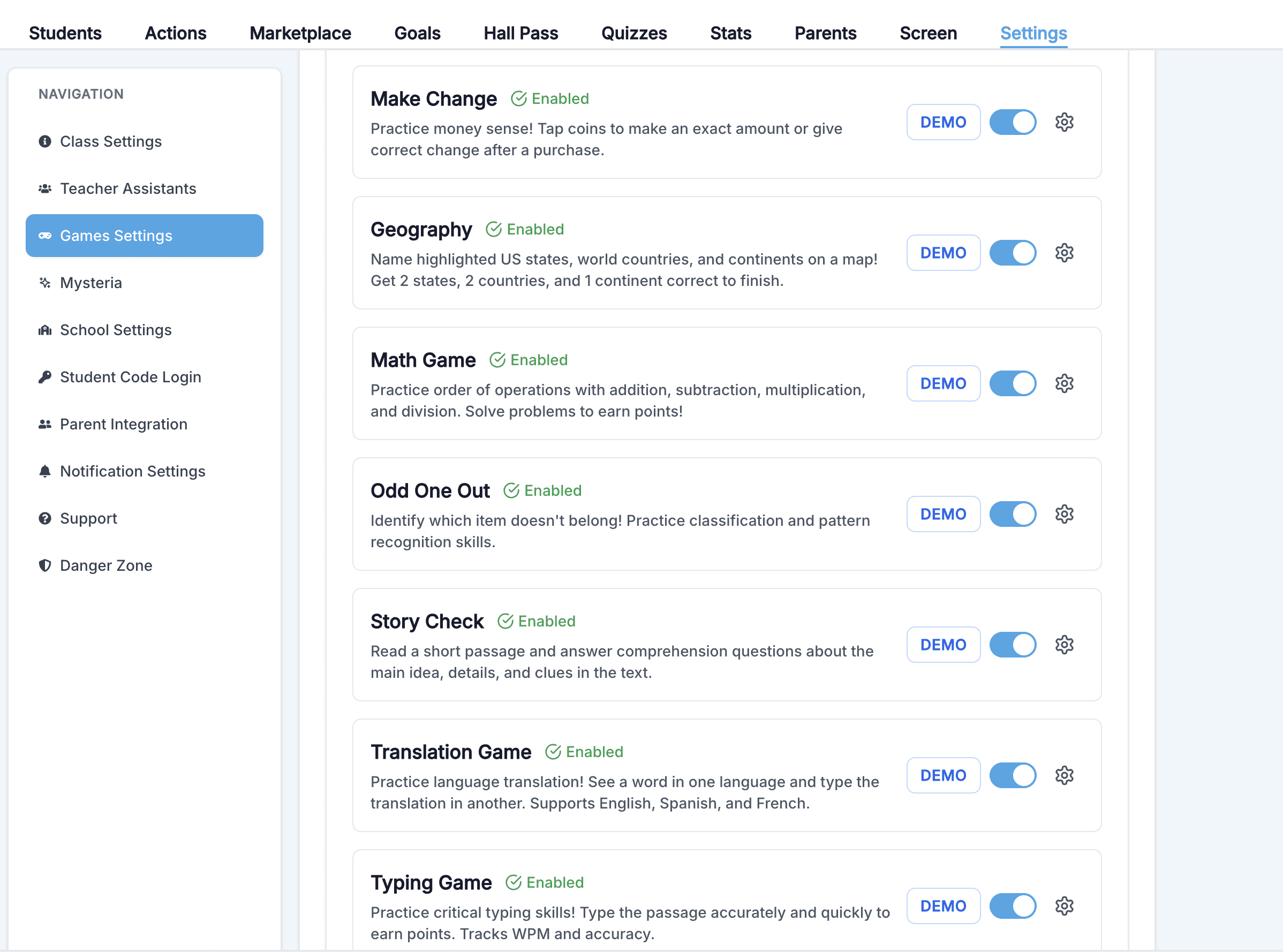
From Class Settings, toggle any game per class, set Easy/Medium/Hard, choose points per completion, and cap daily plays. Preview before students see it. Explore the full set on our daily learning games page.
Class Screen: The Board for the Whole Class
Generic timer sites and whiteboard tabs never know your roster. Class Screen does. Open the Screen view for your class and put routines on one shared projector surface.
Present your class seating chart and schedule to the entire class. Add a message to set the mood for the day. Launch the noise meter to give points when the class becomes silent. Use timers and randomizer during transitions and for fair calls. Launch live polls — multiple choice, Likert, or true/false — without leaving the board.
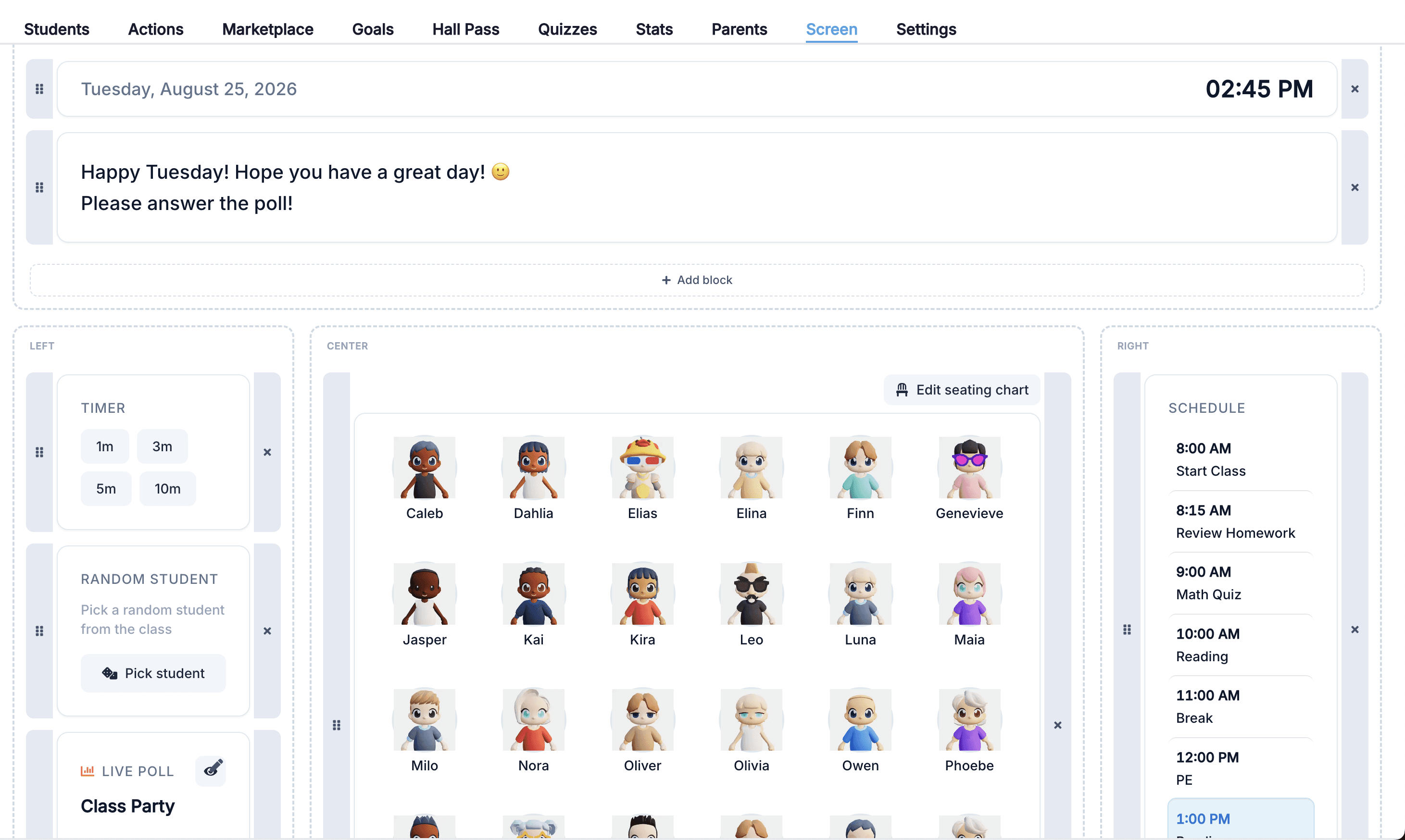
When schedules and routines are visible, you spend less energy repeating expectations. Details live on the Class Screen feature page.
Parent Home and Optional Family Chat
Families want context without another inbox. Teachers want partnership without rewriting the same update three times.
Parent Home is the family hub after login: children, messages, home rewards, tasks, and daily-game demos when parents run a family class. Switch kids without separate logins. Check progress from a phone at pickup.
Parent messaging is optional and per class. When enabled, teachers chat from the Parents tab or a “Chat with parent” action on student detail — invites and conversation in one place. Parents see teacher threads in Messages, with unread badges when something new arrives. Messaging stays hidden when there is no school-linked child to talk about.
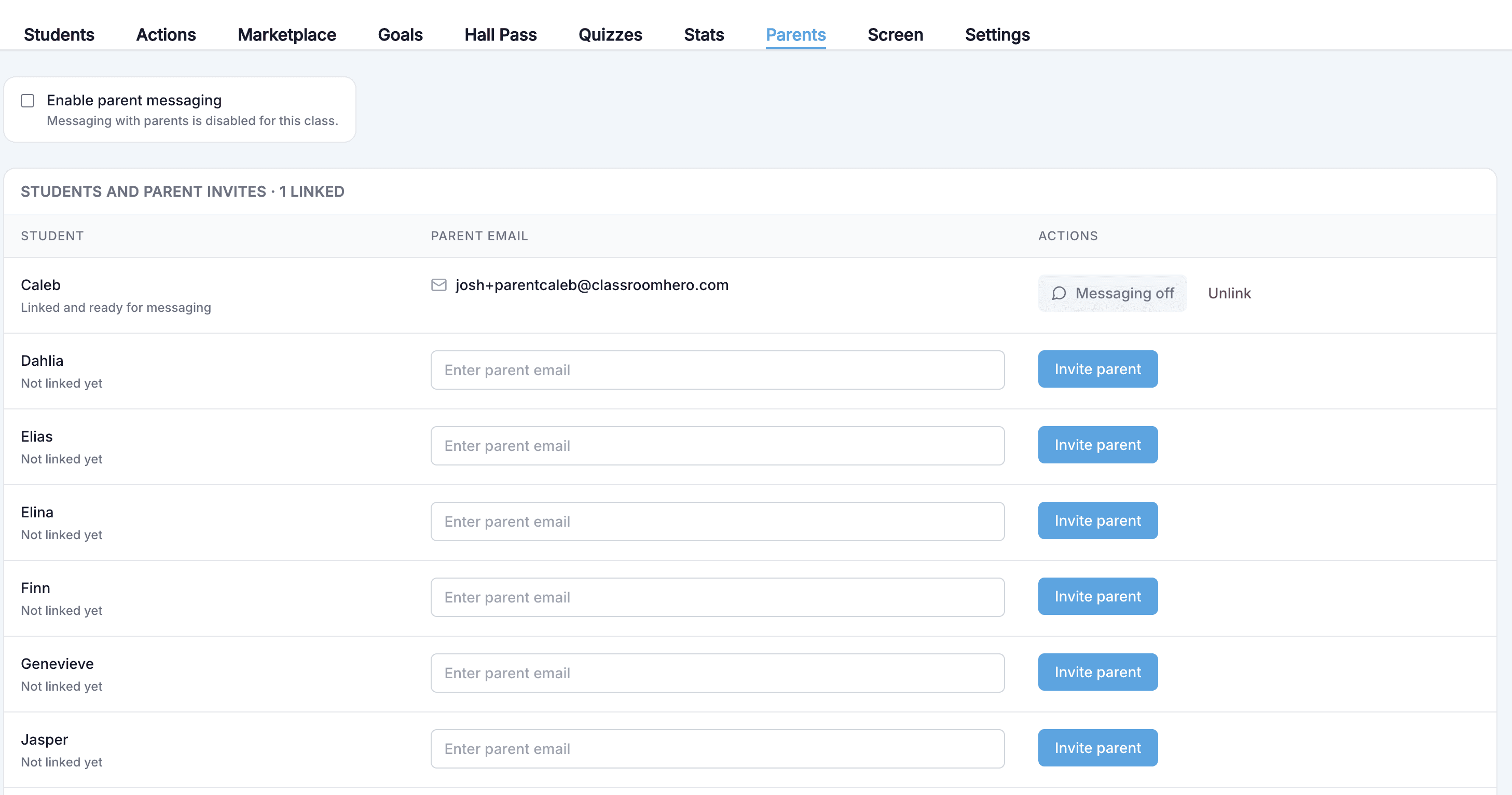
Visibility stays teacher-controlled. Set a class default for activity details, override any student, and keep messaging off until your school is ready. When a parent accepts a school invite, matching children can auto-provision in the family class — less “Add Child + Link” busywork.
See parent integration for the full family loop.
ClassLink Sign-In for Schools
Schools that live in ClassLink LaunchPad can sign teachers in the same way many already use Clever.
Sign in with ClassLink uses ClassLink’s OAuth profile flow, stores a ClassLink identity on the teacher profile, and works on login and registration when your site enables it. Districts already provisioning Classroom Hero through ClassLink can keep one roster identity path instead of asking teachers for a second password.
If your school uses ClassLink and wants SSO turned on, reach out through your Classroom Hero school contact — or start from our schools and districts page.
One Change Per Week, Not the Whole Release
This drop is several products sharing a ship date. Do not demo games, Class Screen, parent chat, and ClassLink on the same faculty Tuesday. Students notice the projector and the game. Families notice the invite email. Admin notices SSO. Each audience needs a different first screenshot.
For broader motivation strategy, read why students learn better through games.
Frequently Asked Questions
What are daily learning games in Classroom Hero?
Daily learning games are short, teacher-controlled skill practice — math, literacy, typing, geography, money math, and more — that pay into your existing classroom economy. You choose which games are on, difficulty, points per completion, and a daily cap from Class Settings.
How do I project Class Screen?
Open the Screen view for your class, then use Present for a full-screen projector board. Avatars, point totals, the timer, randomizer, daily message, and live polls all live on that one URL.
Is parent messaging required?
No. Parent messaging is optional and per class. You can invite families to Parent Home, control activity visibility, and leave chat off until your school is ready.
Does Classroom Hero support ClassLink?
Yes. Schools that already use ClassLink LaunchPad can enable Sign in with ClassLink alongside Clever, so teachers keep one district SSO path instead of a second password.
Try Practice, the Board, and Home in One Place
Classroom Hero keeps shipping the tools you reach for every day — daily learning games, Class Screen, family partnership, and school sign-in — inside one system.
Ready to try what’s new? Create a free account or open Class Settings in your existing class and turn on your first daily game today.