
Class Screen: One Board for Points, Tools & Polls
Project your classroom economy — avatars, timers, randomizers, and live polls — on a single full-screen display built for the projector.
Generic whiteboard tabs and random timer sites never know your roster. Class Screen does. Open the Screen tab for your class and put the same students, avatars, and point balances you already run in Classroom Hero onto one shared board.

Why the Projector Should Match Your Economy
When the board shows a different system than the phones and laptops, students stop connecting recognition to reward. Class Screen keeps one source of truth: reinforce from your teacher view, and the grid updates for the whole room.
What teachers get on one URL:
Live student avatar gallery with names (and seating-style layouts when you save a chart)
Clock and editable daily message for agenda or morning hooks
Timer presets plus a random student picker in the same tool row
Live polls — multiple choice, Likert, or true/false — without a separate app
Optional schedule and noise meter when your routine needs them
Custom backgrounds and widget layout you can preview before saving
Explore the product overview on our Class Screen feature page.
Full Screen Mode for the Front of the Room
Hit Present Full Screen when you are ready to project. Chrome disappears so the room sees the board — not your sidebar, tabs, or notification bell.
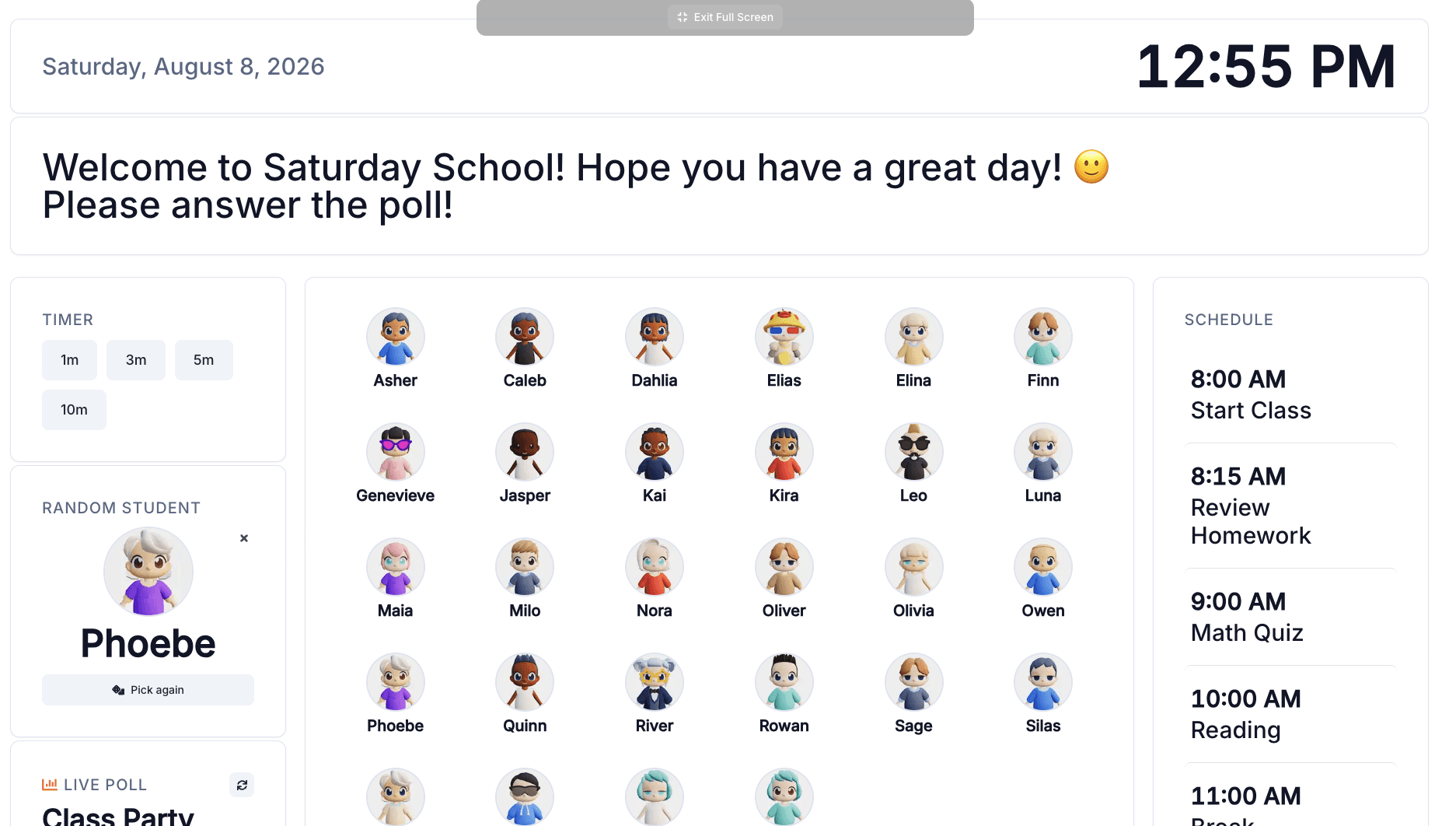
Use present mode for morning meeting, transitions, and independent-work blocks. Exit when you need to start a poll or tweak the layout.
Timer, Randomizer, and Live Polls
Transitions eat minutes when tools live in six bookmarks. Class Screen keeps pacing and participation next to the roster:
Start a 1 / 3 / 5 / 10 minute timer without leaving the board
Pick a student for fair cold-calling
Launch a live poll so the class votes together — results stay tied to your class session

Customize the Layout Before You Commit
Every room is different. Open Customize to toggle widgets, reorder the stack, and try solid, gradient, or image backgrounds. Preview changes before you save so you are not stuck mid-period with a half-finished board.
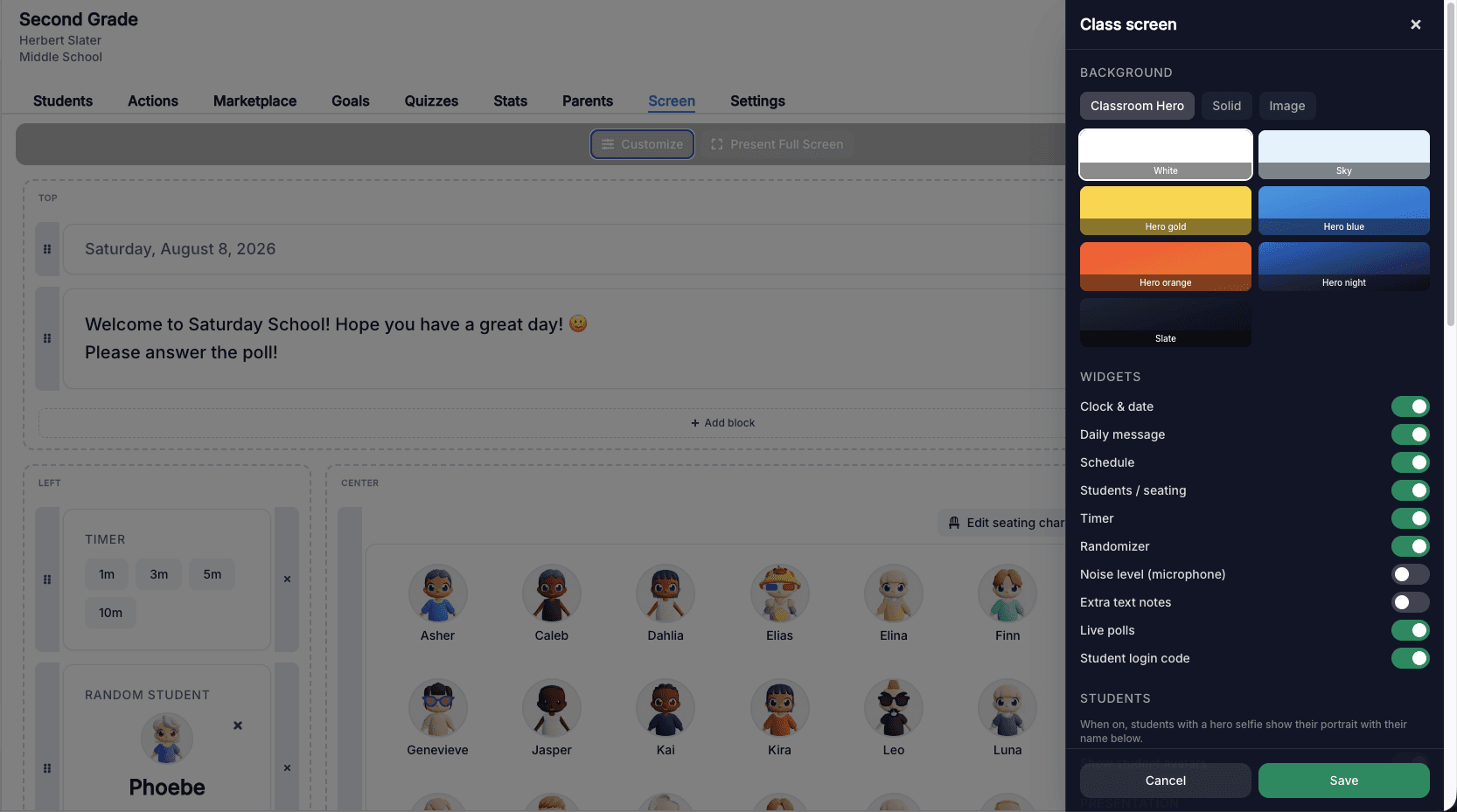
Empty seating charts default to a square student grid. When you want assigned seats, edit the seating chart from the Screen itself.
Pair Class Screen With Daily Games and Rewards
Class Screen is strongest when it reflects the same economy students earn elsewhere:
Project during warm-ups while students play daily learning games
Celebrate point movement after attendance, actions, or quiz wins
Keep avatars visible so recognition feels personal, not abstract
For motivation research behind game-based practice, see why students learn better through games.
First-Week Setup
Open your class → Screen
Add a short daily message for tomorrow’s block
Click Present Full Screen once so students see the grid
Run one timer transition and one pick student call
Try a single poll before you customize backgrounds
You do not need every widget on day one. Start with the avatar gallery, clock, and timer — add polls when the routine sticks.
Ready to project your class economy? Create a free account or open the Screen tab in an existing class today.